

App Information
| App name | Delta Executor |
| Version | 2.743 |
| File | APK for an Android emulator, 159.8 MB |
| Requires | Windows 10 or 11 with an Android emulator |
| Category | Roblox script executor |
| Price | Free (a key is needed) |
| Developer | Lxnny and Team Delta |
| Updated | 21 October 2026 |
This is the same build as the Delta Executor APK for Android, because a PC emulator is simply an Android device running in a window. The file is scanned before upload and is safe to install.
Can You Get Delta Executor on PC?
Yes, but only through an Android emulator. Delta's developer offers Android and iOS versions and lists Windows as discontinued, and its own Windows page now loads the Android download instead.
Delta used to have a Windows version, which is why old videos and download sites still use the "Delta PC" name. Today the developer's own advice for computer owners is to run the Android app in BlueStacks, LDPlayer or MuMu Player and to download the APK with the PC's normal browser. Each route people try on a PC ends up in one of five places:
| Route on a PC | What it really is | Runs Delta? | Main risk |
|---|---|---|---|
| Android emulator + Delta APK | A Windows program that runs Android apps | Yes, this is the only working PC route | Roblox kicks accounts it detects on emulators |
| Delta on your phone or tablet | The Android APK or the iOS app on the device itself | Yes, Delta's main platforms | Roblox account rules |
| A "Delta .exe, .zip or .rar for Windows" | A file built by a third party | Not from Delta's developer | Antivirus flags and stolen accounts |
| Microsoft Store app "Roblox - Windows" | Roblox's newer Windows client | No Delta build exists for it | None, it simply won't work |
| Android apps built into Windows 11 | Windows Subsystem for Android | No, Microsoft retired it on 5 March 2025 | None, it is gone |
So the emulator is the one route that works, and almost everything else sold as "Delta for PC" is either gone or a trap. If you own a Mac or a Chromebook rather than a Windows machine, the steps change. The Delta Executor Mac and Chromebook guide covers the M1 emulator route and the Chromebook ADB method.
Can You Use Delta on PC Without an Emulator?
No. Delta is an Android and iOS app, and no current Windows build comes from its developer, so "no emulator" downloads are tools made by someone else.
Those tools usually hook into the regular Windows Roblox client, which has shipped with Hyperion, Roblox's anti-tamper system, since 2023. Roblox's Terms of Use forbid trying to "circumvent any technological measure designed to protect the Services", so a tool built to do exactly that puts your account at more risk, not less. Players who want a true Windows program are looking for a different category of tool. The Delta vs other Roblox executors comparison shows which names are PC programs and which are mobile apps like Delta.
Delta Executor on Microsoft Store Roblox
Delta cannot be added to the Microsoft Store app "Roblox - Windows", and Windows 11 no longer runs Android apps on its own.
"Roblox - Windows" is the blue-icon app that replaces the older Roblox app, which Roblox says "will eventually stop working". Windows 11 once installed APKs through the Windows Subsystem for Android, but Microsoft removed it, along with the Amazon Appstore, from the Microsoft Store on 5 March 2025. That leaves a third-party emulator as the only way to open an APK on Windows. It is also why searches like "how to use Delta on Microsoft" lead back to the steps below. Delta has no Xbox or console version either.
Delta Executor PC System Requirements
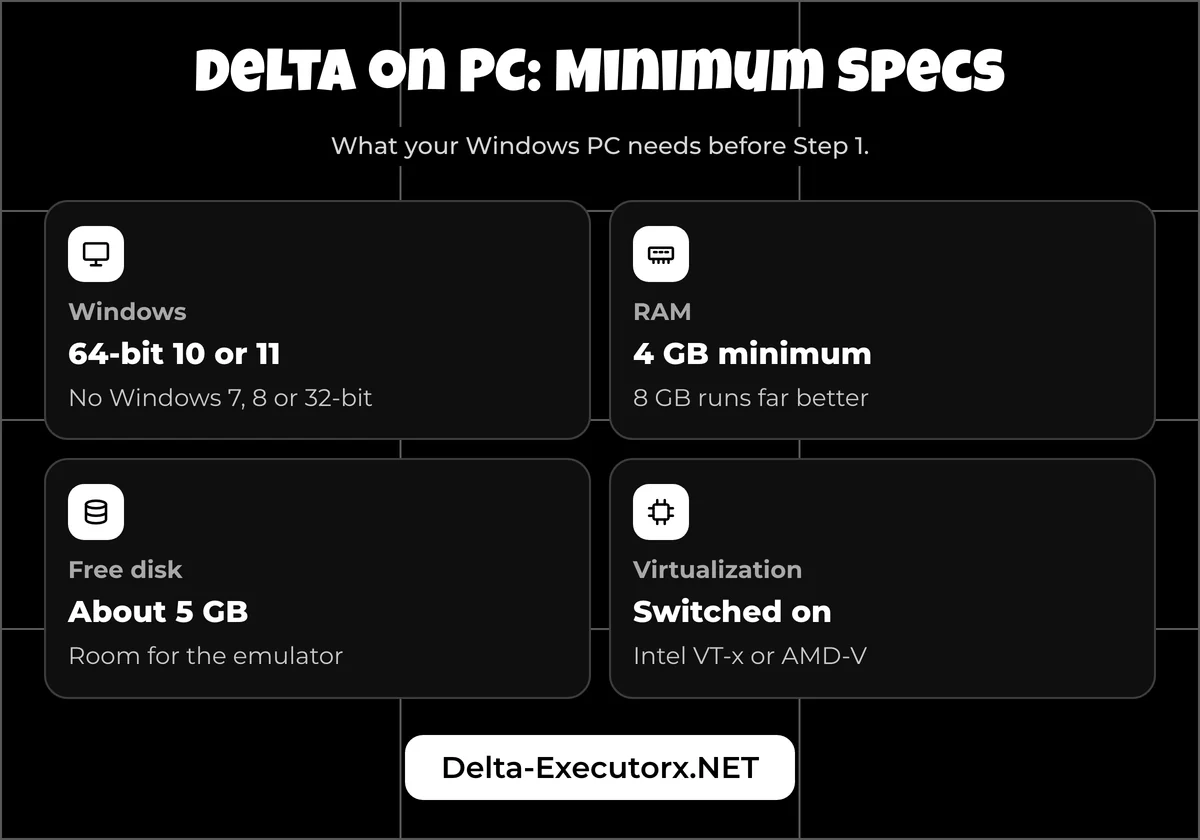
Your PC needs 64-bit Windows 10 or 11, because Roblox will not install on Windows 7, Windows 8 or any 32-bit Windows. For the emulator, plan on 4 GB of RAM at the very least (8 GB runs far better), about 5 GB of free disk space and virtualization switched on.
Many download sites print their own spec sheets with Windows 7 support or graphics cards Roblox never asks for. The numbers below come only from Roblox's and the emulator makers' published requirements, with the practical minimum in the last column:
| Item | Roblox on Windows | BlueStacks 5 | MuMu Player | Minimum for Delta on PC |
|---|---|---|---|---|
| Windows | 64-bit Windows 10 or 11 | Windows 7 or newer (the latest build needs Windows 10+) | Windows 7 or newer | 64-bit Windows 10 or 11 |
| RAM | 1 GB or more | 4 GB minimum, 8 GB+ recommended | 4 GB or more | 4 GB, 8 GB recommended |
| Free disk | 300 MB or more | 5 GB | 2 GB on the install drive + 1.5 GB on the system drive | About 5 GB |
| CPU and virtualization | 1.6 GHz or faster, made in 2005 or later | Intel or AMD; multi-core with virtualization on recommended | i5-7500 class, 4 cores, virtualization on | Virtualization on |
| Graphics | DirectX 10 feature level | Up-to-date graphics drivers | DirectX 11 or OpenGL 4.x | Current graphics drivers |
| Android instance | Android 8.0 or newer (Roblox mobile minimum) | Pie 64-bit, Android 11 or Android 13 (Beta); not Nougat | Android 12 or Android 15 | Android 8.0 or newer |
| Hyper-V left on | Not relevant | Supported from version 5.20 | MuMu Player 12 says turn it off | Current BlueStacks, or LDPlayer 14, which its maker says suits Hyper-V |
| Other | 4 to 8 Mb/s internet | Admin rights; SSD recommended | Intel CPU preferred; some AMD CPUs have issues | Admin rights and a stable connection |
Sources: Roblox Help Center hardware, OS and mobile requirements, BlueStacks Support system requirements and Hyper-V articles for BlueStacks 5, MuMu Player minimum requirements and Hyper-V help. LDPlayer is left out of the table.
Delta Executor Laptop Requirements
A laptop follows the same rules as a desktop: 64-bit Windows 10 or 11, at least 4 GB of RAM and virtualization turned on. Brand makes no difference to the steps, so an HP, Dell, Acer or Lenovo laptop installs Delta the same way.
On a 4 GB laptop the emulator sits right at the floor, so close your browser tabs and other programs before you open it. Turning on virtualization does not require knowing your laptop maker's BIOS key either, because Step 2 reaches the firmware settings through Windows itself.
Two kinds of laptop need extra care. MuMu says Microsoft Surface computers lack virtualization support, so MuMu won't install on them the normal way, and laptops with an ARM processor need MuMu's separate Windows-on-ARM download. Delta and Roblox aren't known to run on that ARM build, so a laptop with an Intel or AMD processor is the safer choice.
How to Install Delta Executor on PC
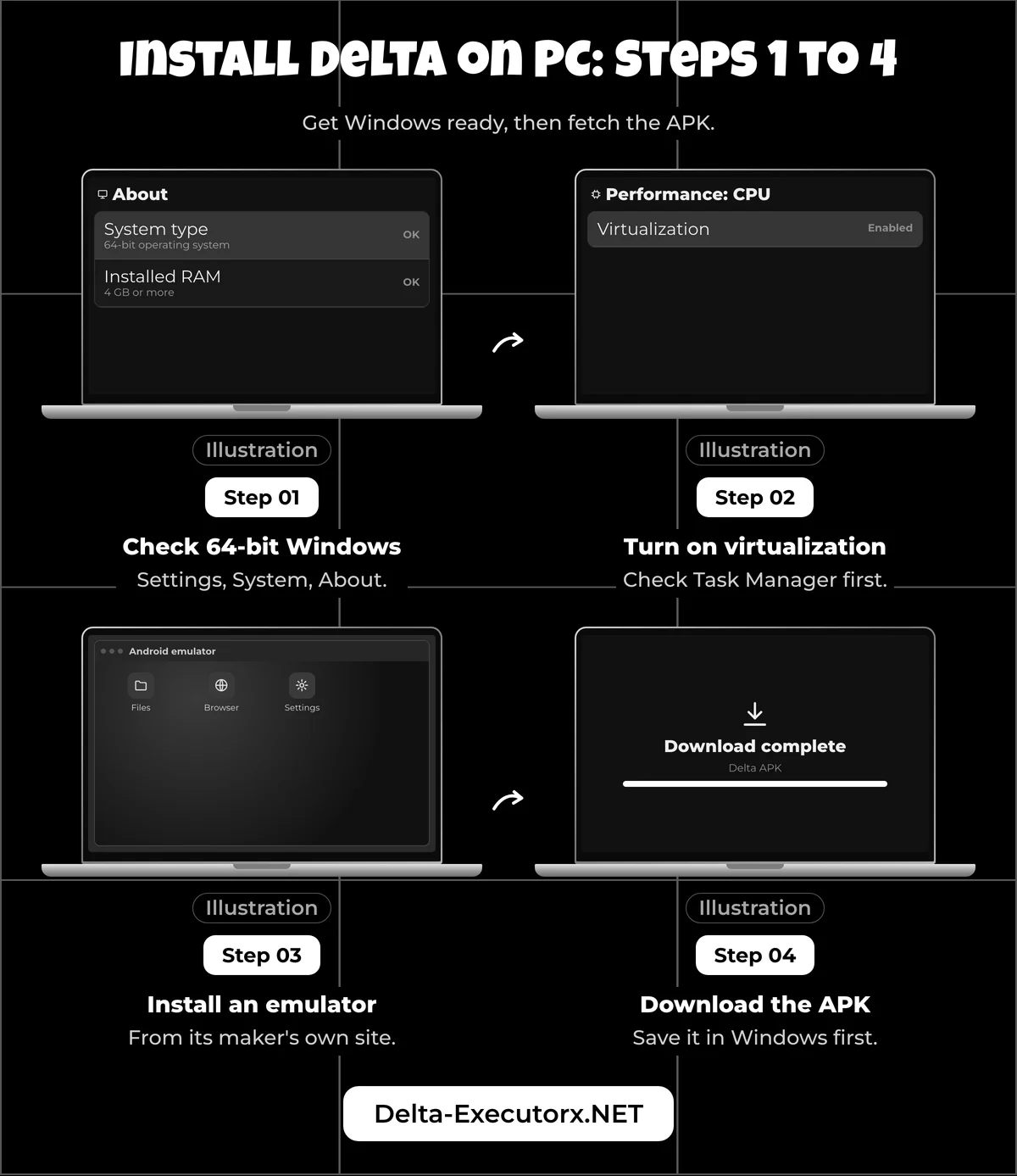
Install an Android emulator, download the Delta APK with your Windows browser, then drag the APK into the emulator. The walkthrough below uses BlueStacks 5 for its button names, and the developer also names MuMu Player and LDPlayer as options.
Step 1: Check That Windows Is 64-bit
Right-click Start, open Settings, then System, then About, and look under Device specifications for the "System type" line. Microsoft uses the same path on Windows 10 and 11, and the line must say "64-bit operating system".
The same block lists "Installed RAM", which should read 4 GB or more. If the system type says 32-bit, stop here, because Roblox does not install on 32-bit Windows and no emulator changes that.
Step 2: Turn On Virtualization
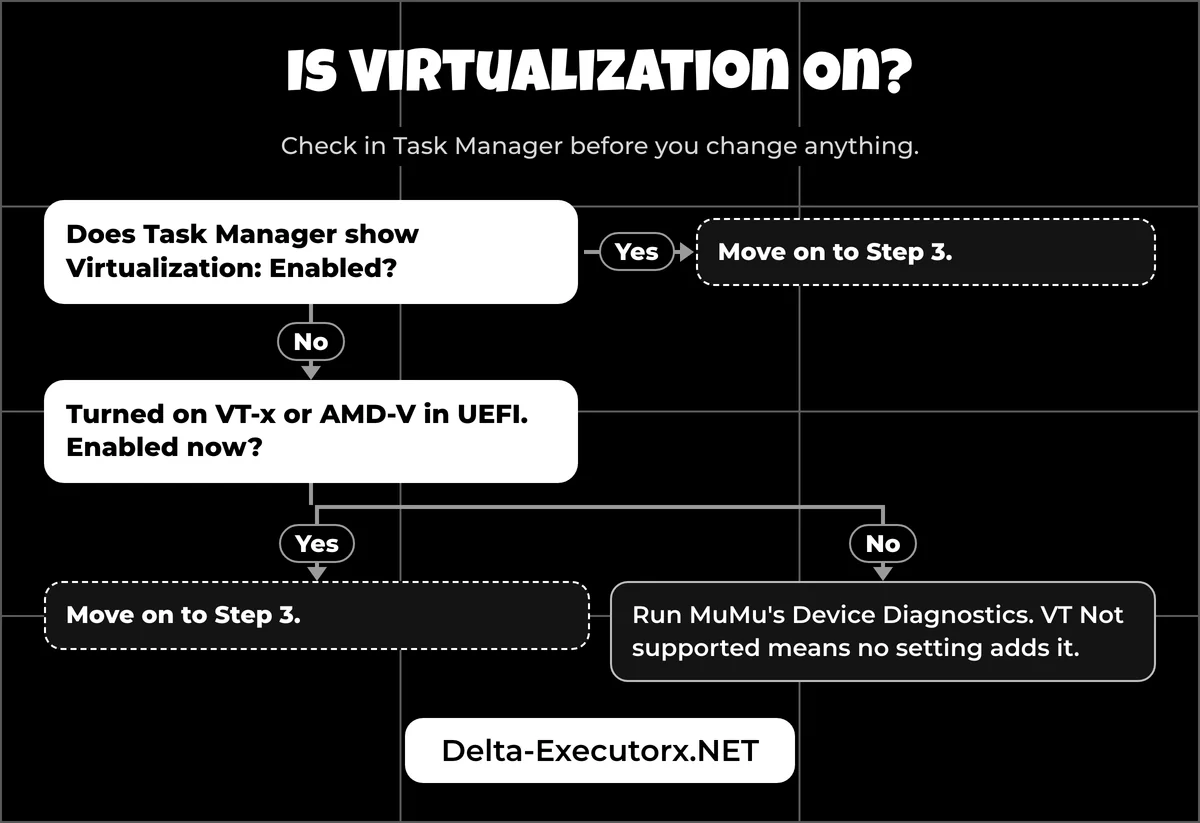
BlueStacks recommends virtualization and MuMu requires it, and Microsoft notes that it is often already on, so check before you change anything.
Press Ctrl + Shift + Esc to open Task Manager, open the Performance tab, select CPU and look for the "Virtualization" line. If it says Enabled, move on to Step 3. If it says Disabled, switch it on in your PC's UEFI firmware:
- On Windows 11, open Settings, then System, then Recovery. On Windows 10, open Settings, then Update & Security, then Recovery.
- Next to Advanced startup, click Restart now.
- Choose Troubleshoot, then Advanced options, then UEFI Settings, and click Restart.
- In UEFI, turn on the virtualization option. Intel PCs call it Intel VT-x or VMX, and AMD PCs call it AMD-V or SVM. Save and exit.
Microsoft walks through the same path in its guide to enabling virtualization on Windows. Once Windows restarts, Task Manager should show "Virtualization: Enabled". MuMu Player also runs its own check: open its Main Menu, choose Device Diagnostics, and if VT reads "Not supported", the motherboard lacks the feature and no setting adds it.
Step 3: Install an Android Emulator
Get the emulator only from its maker's own website and run the installer with administrator rights. Decline any extra apps or offers the installer shows, then update your graphics drivers before the first launch.
BlueStacks, MuMu Player and LDPlayer behave differently on low-end PCs and with Hyper-V, and the best emulator for Delta Executor page scores all three, so pick there if you are unsure. Whichever you choose, the remaining steps are the same.
One setting matters before you install anything: the Android version of the emulator instance. Roblox needs Android 8.0 or newer, so a BlueStacks Nougat instance (Android 7) cannot run it at all. Create a Pie 64-bit or Android 11 instance through BlueStacks' Multi-instance Manager (Instance, then Fresh instance), and in MuMu any of its Android 12 or Android 15 instances clears the bar. If Roblox refuses to open inside the emulator, this is the first thing to check.
Step 4: Download the Delta APK on Windows
Use your normal Windows browser, such as Chrome or Edge, and the download box at the top of this page. The developer's own PC instructions say to download the APK on the computer rather than with a browser inside the emulator.
Before you install, open your Downloads folder and make sure the download finished: the APK should be 159.8 MB. If it is smaller, delete it and download it again.
Step 5: Install the APK in the Emulator
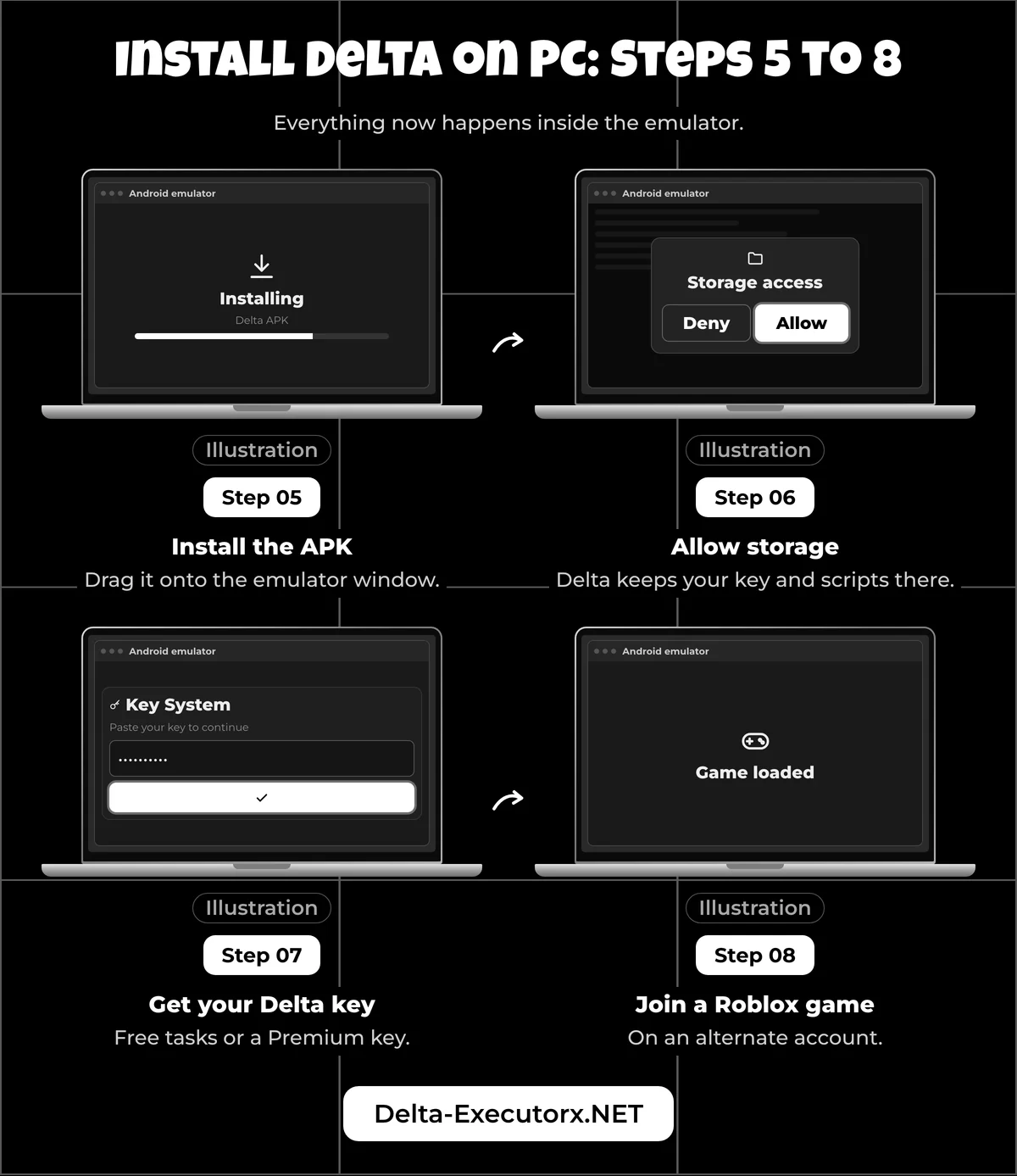
Drag the APK from your Downloads folder and drop it onto the emulator window, or use the emulator's own install option. In BlueStacks 5 that is the "Install APK" button on the Side toolbar, which opens a Windows Explorer window where you select the file and click Open. In other emulators the button name may differ, but dragging the file onto the window works the same way.
When the install finishes, the Delta icon appears on the emulator's home screen. Delta's install guide says to uninstall the Play Store Roblox app first, so if the emulator already has Roblox from Google Play, remove it before you install Delta. If you get "App not installed" or "installation failed" instead, the fixes table further down lists the causes, and the Delta Executor app not installed fix explains each Android install message in full.
Step 6: Open Delta and Allow Storage
Launch Delta from its icon inside the emulator, not from your Windows desktop. The icon may be labelled Roblox rather than Delta, because the Delta APK carries the Roblox name.
On first launch Delta asks for storage permission, which the developer says it needs "to save your key, scripts and for certain features to function". Click Allow, since that storage is also where Delta keeps the scripts you save, as the Delta Executor script manager guide shows. If you denied it by mistake, open the emulator's Android Settings, then Apps, the Delta app (it may be listed as Roblox) and Permissions, and allow storage there.
Step 7: Get Your Delta Key
Delta's free version needs a key that you earn by finishing tasks on a website, while Premium is a paid key that skips those tasks. Both work the same way inside an emulator as on a phone, and no keyless PC build exists either, which the Delta keyless explainer covers along with why "no key" downloads are fakes.
The Delta key guide walks through the key page on PC, including how to copy the key between Windows and the emulator. The key page sometimes refuses to load in the emulator's browser, and the fixes table below covers that case.
Step 8: Join a Roblox Game
Open Roblox inside the emulator and sign in with an alternate account, never your main one. Roblox's Community Standards ban "using or sharing exploits to help yourself or others gain an unfair advantage". Its Terms of Use also allow it to suspend or close accounts that break them, alternate accounts included, along with their Robux and items.
Wait until you are in the game and can move your character before you run a script, such as one from the Delta scripts hub. One of three things then happens on joining:
- The game loads normally. Open Delta's floating button, paste a script into the editor and click Execute. Delta also has an "Execute Clipboard" button, so a script copied in Windows can run without pasting, if your emulator shares the Windows clipboard.
- "Emulator Detected". Roblox removed you for playing on an emulator; the section after the fixes table explains what that means.
- "This game has enabled additional hardware security requirements." That game only accepts real, unmodified phones, though other games may still load.
The developer itself calls bans "pretty rare", but that is the seller's view, and the Delta Executor ban risk breakdown shows how Roblox detects modified apps and which actions carry the most risk.
Delta Executor PC Update
Download the newer APK from the box at the top of this page and install it into the emulator with Steps 4 and 5. There is no separate "PC update", because the PC route always uses the latest Android build.
Delta's version number follows Roblox's Android build number, so a Roblox update usually leaves Delta one build behind for a short time. During that gap Delta asks you to "upgrade" and Roblox shows Error 280, and the only real fix is the Delta build that matches the new Roblox version. The Delta upgrade and Error 280 fix explains which build matches right now. If you are unsure whether Delta is broken for everyone, the Delta status check shows what to look for while you wait.
If a new APK refuses to install over the old one, the two copies are usually signed differently, which Android blocks, so remove Delta from the emulator first and install fresh. The steps for removing Delta, its folder and the leftover APK are in the guide to uninstall Delta Executor.
Delta Executor PC Not Working
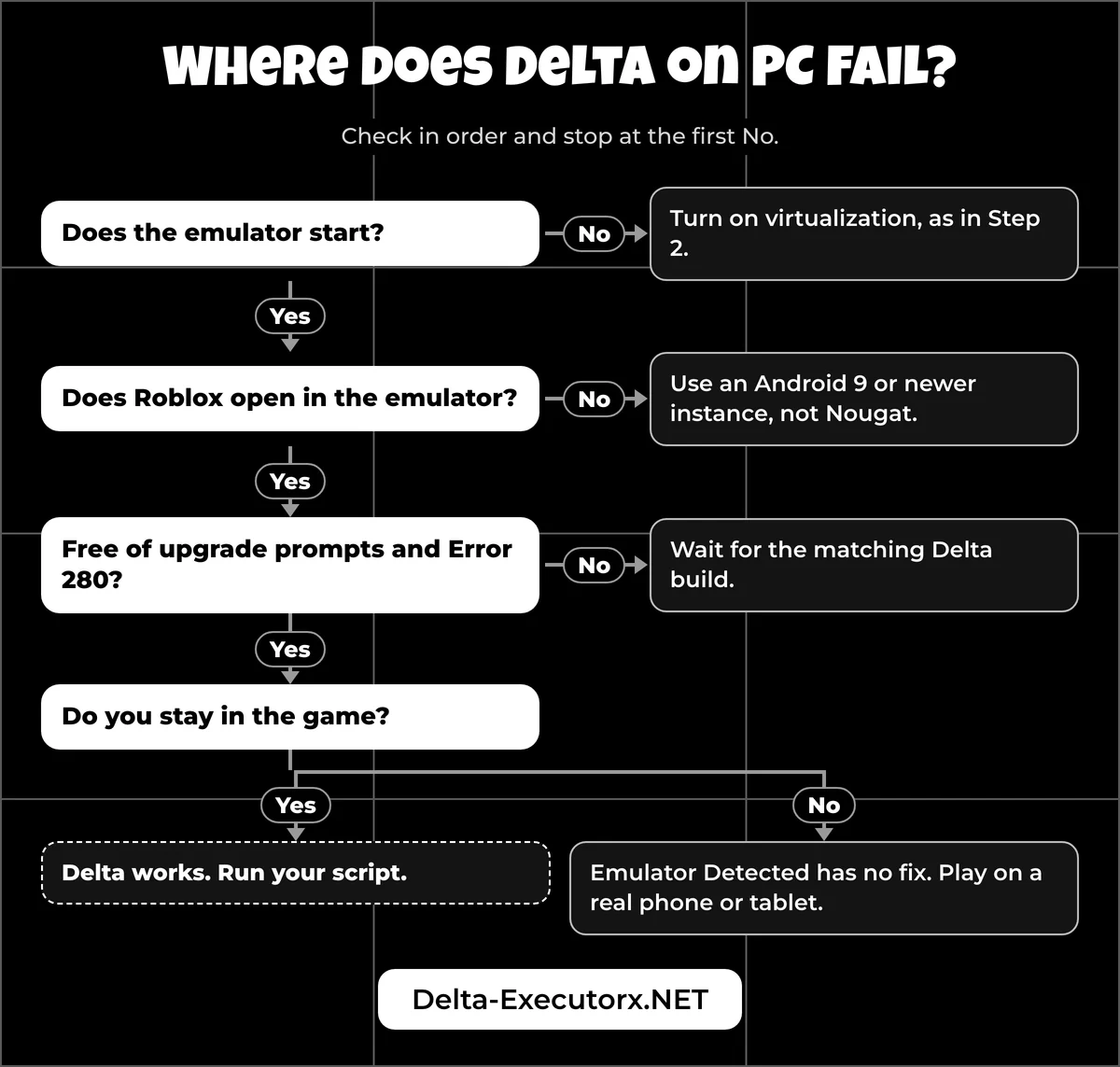
Only one message below, the "upgrade" prompt, comes from Delta itself; the rest come from the emulator, Windows or Roblox. Check virtualization first, then whether Roblox is kicking the emulator, because no other fix helps until both are clear.
The table follows the order of the install steps, so you can match the message on your screen to the stage you reached:
| Stage | What you see | Cause | Fix |
|---|---|---|---|
| Emulator | The emulator won't start or asks you to enable virtualization | Virtualization is off in UEFI | Turn it on with Step 2 |
| Emulator | BlueStacks: "Incompatible Windows settings" | Hyper-V is on and BlueStacks is version 5.14 or older | Update BlueStacks (gear icon, About, Check for updates). Version 5.20 and newer runs with Hyper-V on or off, so nothing in Windows needs switching off |
| Emulator | MuMu Player 12 runs very slowly or won't start | MuMu says Hyper-V, VBS and Core Isolation conflict with it | Turn off Memory integrity in Windows Security, Device security, Core isolation details, as MuMu's help describes. Turn it back on once you stop using the emulator, because it protects Windows |
| Install | BlueStacks rejects the APK as incompatible | The APK needs a different Android version than the current instance | Create a Pie 64-bit or Android 11 instance (Step 3) and install there |
| Install | "App not installed" or "installation failed" | The APK's native code doesn't match the emulator's Android setup, or a Roblox app with a different signature is already installed | Remove any Roblox app from the emulator, download the APK again and retry |
| Key | The key page won't load in the emulator's browser | A browser problem inside the emulator | Get the key with the Windows browser, as the key guide shows |
| Launch | Roblox won't open at all inside the emulator | The instance runs Android 7 (BlueStacks Nougat), below Roblox's Android 8.0 minimum | Move to an Android 9 or newer instance, as Step 3 shows |
| Launch | An "upgrade" prompt in Delta, or Error 280 in Roblox | Roblox updated and Delta is one build behind | Wait for the matching Delta build, then install it with Steps 4 and 5 |
| Join | "Emulator Detected" | Roblox kicks accounts on emulators (since August 2025) | No setting fixes it; play on a real phone or tablet |
| Join | "This game has enabled additional hardware security requirements", "Roblox was not able to verify the integrity of the app" or "This place requires a trusted operating system" | The game uses Android remote attestation, which treats emulators as untrusted | That game can't be played from an emulator; try another game |
| In game | Roblox closes back to the emulator home screen, or "Roblox keeps stopping" | Usually too little free RAM for the emulator | Restart the emulator and close other Windows programs to free RAM |
| In game | Heavy lag on a PC that meets the requirements | Virtualization off, or the emulator has too little RAM or too few CPU cores | In BlueStacks, open the gear icon, then the Performance tab, raise cores and memory, click Save changes and restart. More than one core needs virtualization on, and BlueStacks warns against giving it every core |
| In game | The camera or character won't move | No keys are mapped | In BlueStacks, click the Game controls icon on the Side toolbar and open the Controls editor to set movement and camera keys |
If the key itself is rejected rather than the page failing to load, the Delta key not working fixes match each key error message to its cause. When the task site is the snag, the Linkvertise, Work.ink and LootLabs key steps show which button is real and which is an ad.
Problems that also happen on phones belong to the main Delta Executor not working checklist, and crashes on launch have their own Delta crashing fix. If Delta opens but will not attach to Roblox, the Delta Executor not injecting fix matches each symptom to its cause. A script that throws an error or does nothing is handled in the Delta script error fix.
Is There a Fix for "Emulator Detected"?
No. Roblox's own help page says it doesn't allow emulators for accounts without place edit access, names BlueStacks and NoxPlayer as examples, and points to a physical Android or iOS device as the fix.
The rule took effect on 7 August 2025 and is still listed on Roblox's Anti-cheat Messages page. The "place edit" exception only covers games you build yourself, where you hold Edit permission through Roblox Studio's Collaborate menu, so it is no way in for a player. Roblox may suspend an account for a while after anti-cheat messages and ban it permanently "if it happens repeatedly", so don't keep rejoining after a kick.
Enforcement is uneven: some accounts still join games through an emulator while others are kicked on the first try. Part of the reason is that some game creators add their own community-made emulator checks on top of Roblox's, so one game may kick you while the next one loads. If the kick keeps coming back, Delta on a phone is the reliable path, and iPhone owners can follow the Delta Executor iOS install instead.
Are Delta Executor .exe Files Real?
No. Since no Windows Delta exists, every "Delta Executor PC" .exe, .zip or .rar is a third-party file, whether it sits on MediaFire, a download directory or a file-sharing site.
Results for a Delta PC download tend to look like these:
- Download-directory listings that show no file name, no version and no signature.
- A third-party Windows tool that needs administrator rights, downloads a Delta APK by itself and hooks it into Windows Roblox.
- A "Delta" GitHub page with no code and no releases.
- "Delta X" PC downloads. Delta X is just a nickname for the same mobile app, not a separate PC product.
Delta PC Download Red Flags
Some PC download pages also tell readers to switch off Windows Defender or click past warnings, which is the opposite of safe. Stop if any of these is true:
- The file is an .exe, .zip, .rar or a password-protected archive.
- The page tells you to turn off Windows Defender or your antivirus.
- It tells you to click "Keep anyway", "Keep dangerous file" or "Run anyway" on a warning.
- You need a download manager to get the file.
- The link sits behind an ad locker, a survey or a payment.
- The site calls itself the "official Delta PC" website.
- No version or file size is shown.
- After installing, you see Chinese-language screens or strange pop-ups.
The emulator route never needs your antivirus off or a warning overridden, and the only Delta file it uses is an .apk. If an old deltainstaller.exe still sits on your PC and shows "Error at position (line 1, column 2): The 'html' element is not declared", that installer belongs to the discontinued Windows version. Delete it instead of following old fixes that tell you to switch antivirus off.
A Windows SmartScreen warning on a "Delta" .exe means Windows doesn't recognise the file, which is a reason to stop rather than a box to click through. For a wider look at why executors attract malware in the first place, what a Roblox executor is covers how they work and where the risks come from. Script files carry the same danger, so the guide to safe Roblox script sites ranks the usual sources by risk before you paste anything into Delta.
Is There a Real Delta Executor PC Download?
No. The developer's Windows page now shows the Android download, so no PC file from the developer exists, and sites titled "Delta Executor PC Official Website" are not run by it.
The developer's own channels are its Telegram channel and the "Delta Dynamics" Discord server, which had about 4.1 million members in October 2026. Delta comes from Lxnny and Team Delta, so any page naming a "Delta PC" company is making it up. To make sure you join the real server rather than a copy, the Delta Discord invite page shows the genuine link and how to spot fakes.
Roblox Warnings After Using a Delta .exe
A "Delta PC" tool that hooks the Windows Roblox client can set off Roblox's own anti-cheat messages. Each one below is quoted from Roblox's help page and shows up in the Windows Roblox app, not inside an Android emulator:
| Message in Windows Roblox | What Roblox says it means | What to do |
|---|---|---|
| "We noticed a modified version of Roblox was used on a device you recently played on." | A changed Roblox app ran on that PC; "continued use of modified versions may lead to more account restrictions" | Delete the tool and the modified Roblox, then reinstall Roblox from roblox.com |
| "Roblox has crashed due to incompatible software:" followed by a file path | The program at that path interferes with Roblox | Find what owns that path. If it is the Delta tool, remove it; if it is a known program, close it while you play |
| "Roblox was stopped. Please ensure third-party software does not interfere with Roblox." | Another program suspended Roblox | Uninstall the tool, then use the clean boot Roblox describes (msconfig) to find anything left running |
| "Roblox cannot run inside of a virtual machine." | Roblox Player was started in a VM without GPU passthrough | Run Roblox on the PC itself. Roblox's only VM fix is GPU passthrough |
If the "modified version" warning keeps coming back after a reinstall, Roblox suggests starting Windows in Safe Mode: if Roblox works there, a background program is still changing it. A leftover piece of the fake tool is the first thing to look for.
What to Do After Running a Fake File
Disconnect from the internet and run a full Microsoft Defender scan straight away. Then change your Roblox password from a different, clean device and turn on 2-step verification.
Once the PC scans clean, the safe route is the APK in the download box above, installed into an emulator you got from its maker's own site.
FAQ
Does Delta Executor Work on Windows 11?
Yes, through an emulator, as long as Windows 11 is the 64-bit edition and virtualization is on. Windows 11 cannot open the APK by itself since Microsoft retired its Android subsystem in March 2025.
Is Delta Executor Free on PC?
Yes. The PC route uses the same free Android app, which needs a free key earned through website tasks; the paid Delta Premium key only skips those tasks.
Which Emulator Is Best for Delta on PC?
The developer names BlueStacks, LDPlayer and MuMu Player, and all three install the APK the same way. BlueStacks asks only for an Intel or AMD processor at minimum, while MuMu requires virtualization and a 4-core, i5-7500 class CPU.
Can Delta Run on a 4 GB Laptop?
Yes, 4 GB is the minimum both BlueStacks and MuMu list, but expect slower play. Close other programs first, and treat 8 GB as the comfortable amount.
Why Does My Antivirus Block Delta on PC?
If it blocks an .exe or .zip, that file is a third-party Windows tool, not Delta, so delete it. The genuine route uses only an .apk inside the emulator, which never asks you to turn your antivirus off.
Do I Need a New Key Every Time?
Free keys are temporary, so you repeat the tasks when one expires, just as on a phone. How long each key lasts and how to check the time left is set out in the Delta key duration guide.
Does Delta Executor Work on Windows 7?
No. Some emulators still install on Windows 7, but Roblox itself only installs on 64-bit Windows 10 or 11, so Delta has no game to attach to. Upgrade Windows or use Delta on a phone instead.
Conclusion
Delta Executor on PC means the Android APK running in an emulator on 64-bit Windows 10 or 11, with virtualization on and an alternate Roblox account, because the Windows build is discontinued and Roblox kicks the emulators it detects. Get the APK from the box at the top, follow the eight steps, and once a game loads, the guide to running scripts in Delta takes you from an empty editor to your first working script. Setups for iPhone, Mac and Chromebook sit side by side in the Delta Executor platform guides.